Product Manual
A complete guide to CodeYMate IDE — from opening projects to Git workflows — to help you get up and running quickly.
Open Project
Manage multiple projects in a single IDE instance
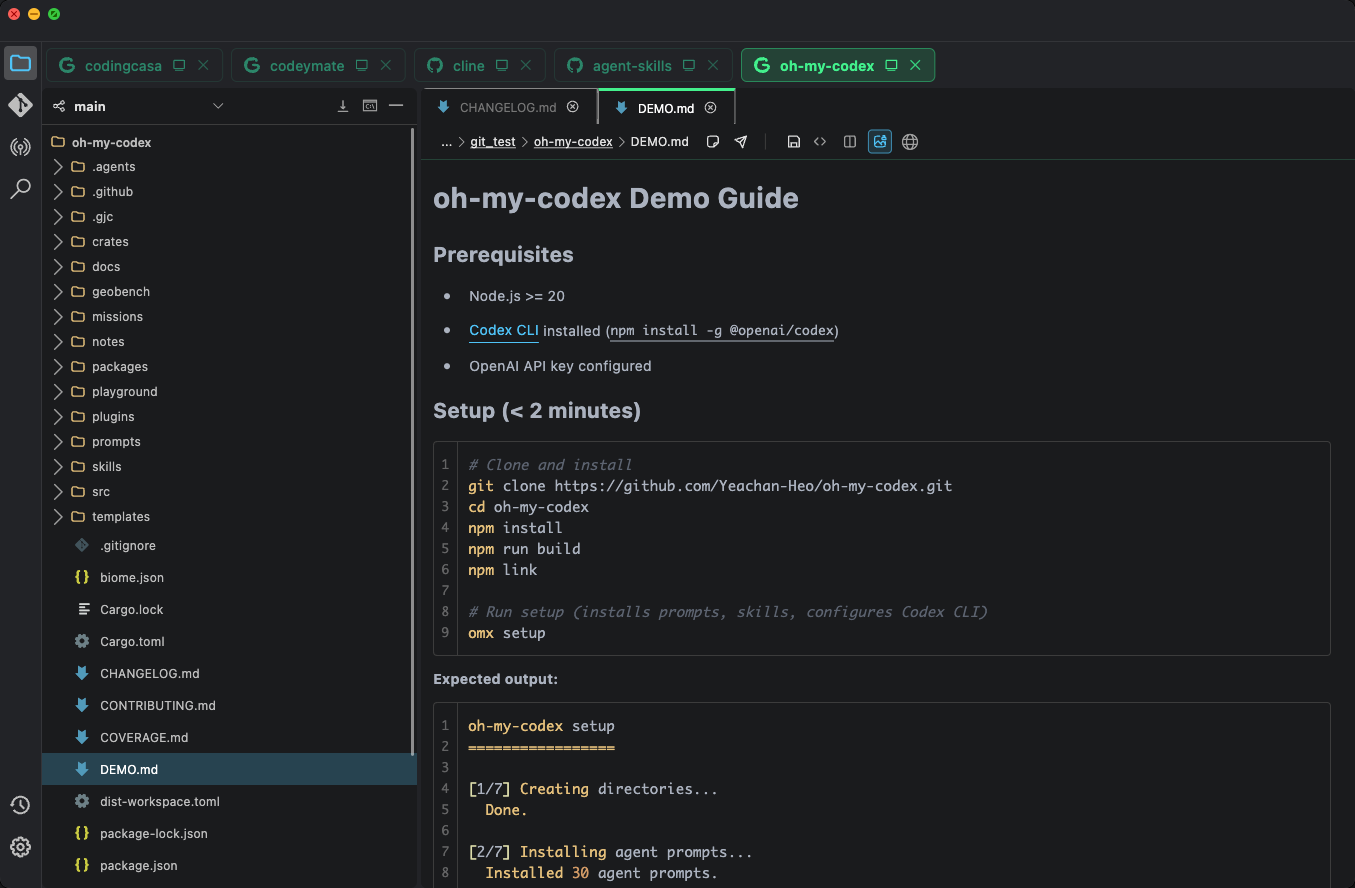
Use the menu File → Open Folder to select a project root directory. You can open multiple projects and switch between them using the project tabs at the top of the workspace.
Clone Project
Supports both HTTPS and SSH for cloning remote repositories
Clone via HTTPS
Use the menu Git → Clone by HTTPS to open the Clone dialog.
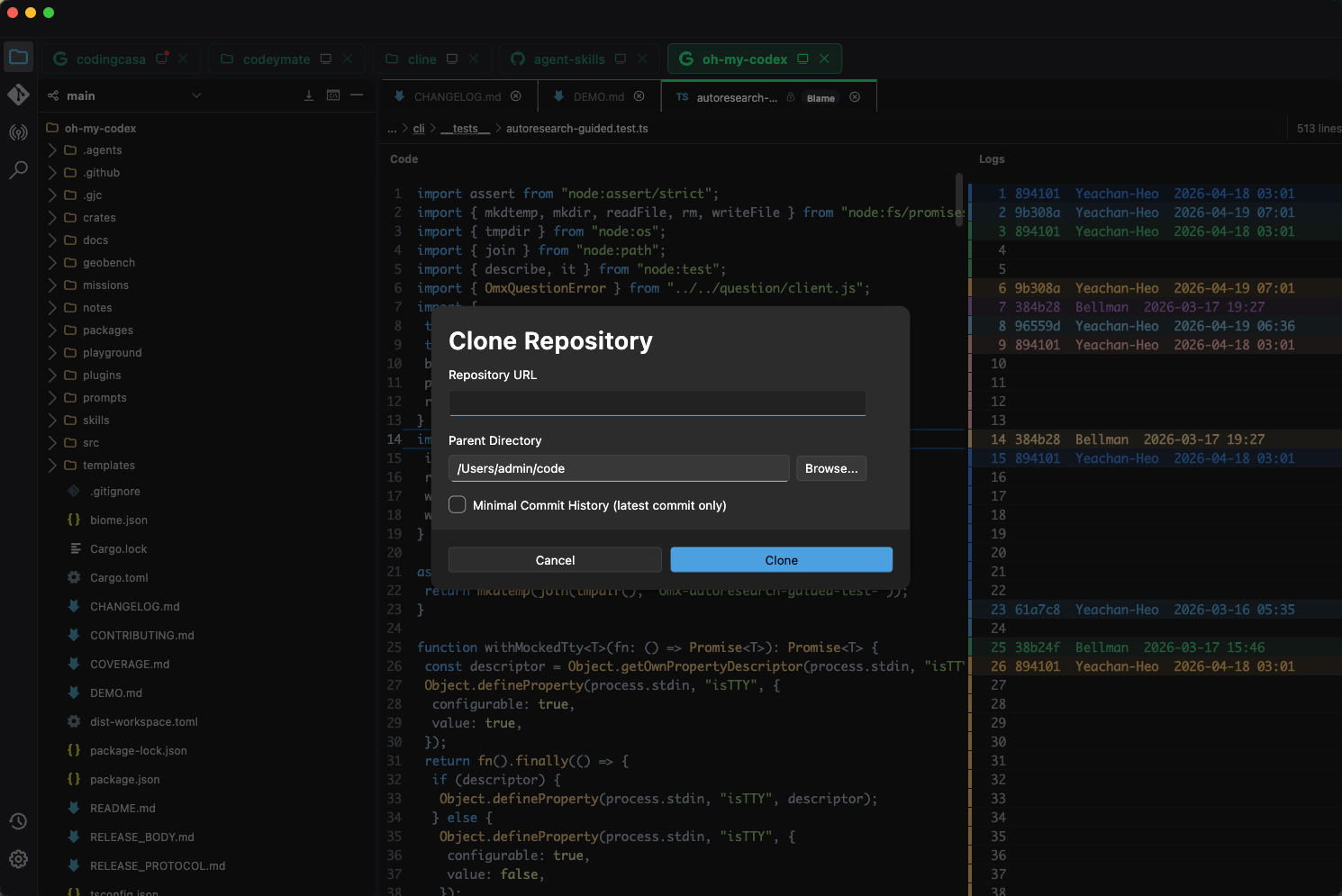
After entering the project URL, the Software automatically detects whether the repository is public or private.
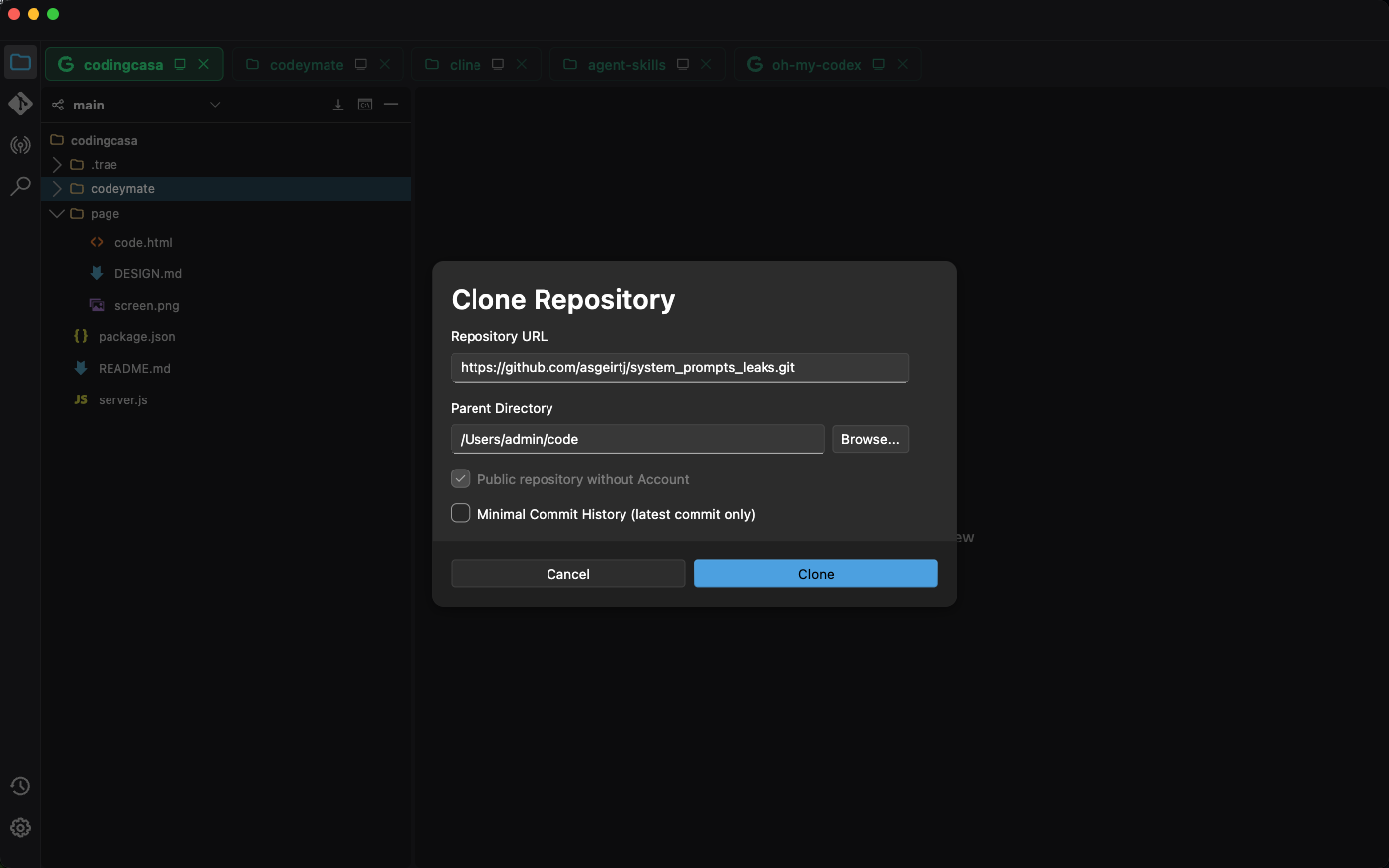
Public Project
If the project is public, the first option is automatically selected. Click the Clone button to proceed.
Private Project
For private projects, three authentication methods are available:
Use System Account
Use the account saved by the operating system — the same account you would use in a Git Clone command.
Use a New Account
Fill in your Email, Username, and Access Token, then click the Clone button.
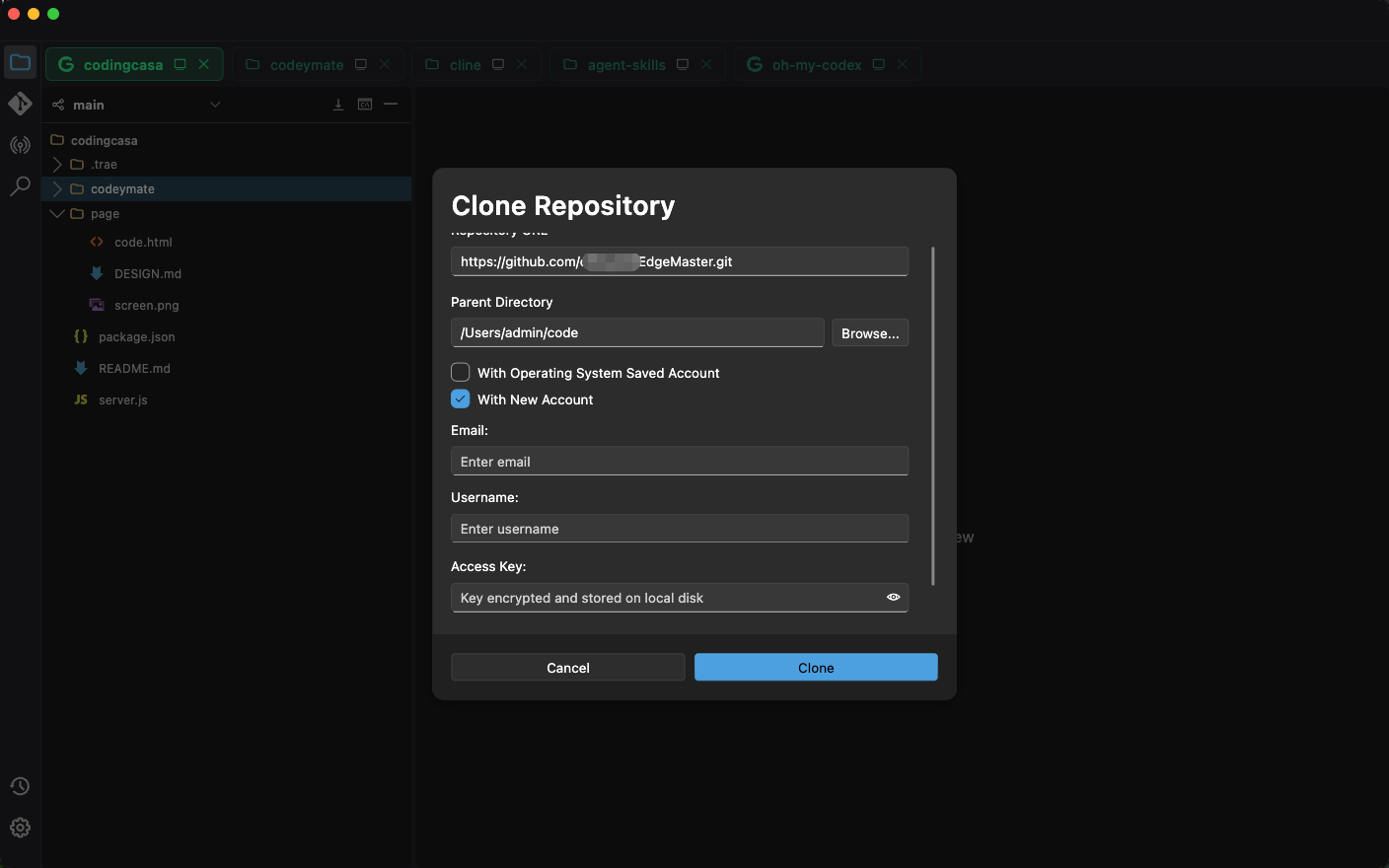
If the Clone succeeds, the account is automatically saved under Settings → Git Account → HTTPS Accounts and can be used directly for future Clones.
Use a Saved Account
If you have previously saved an account, you can select it directly in the Clone dialog.
Clone via SSH
You need to configure an SSH key first under Settings → Git Account → SSH Keys.
Add an SSH Key
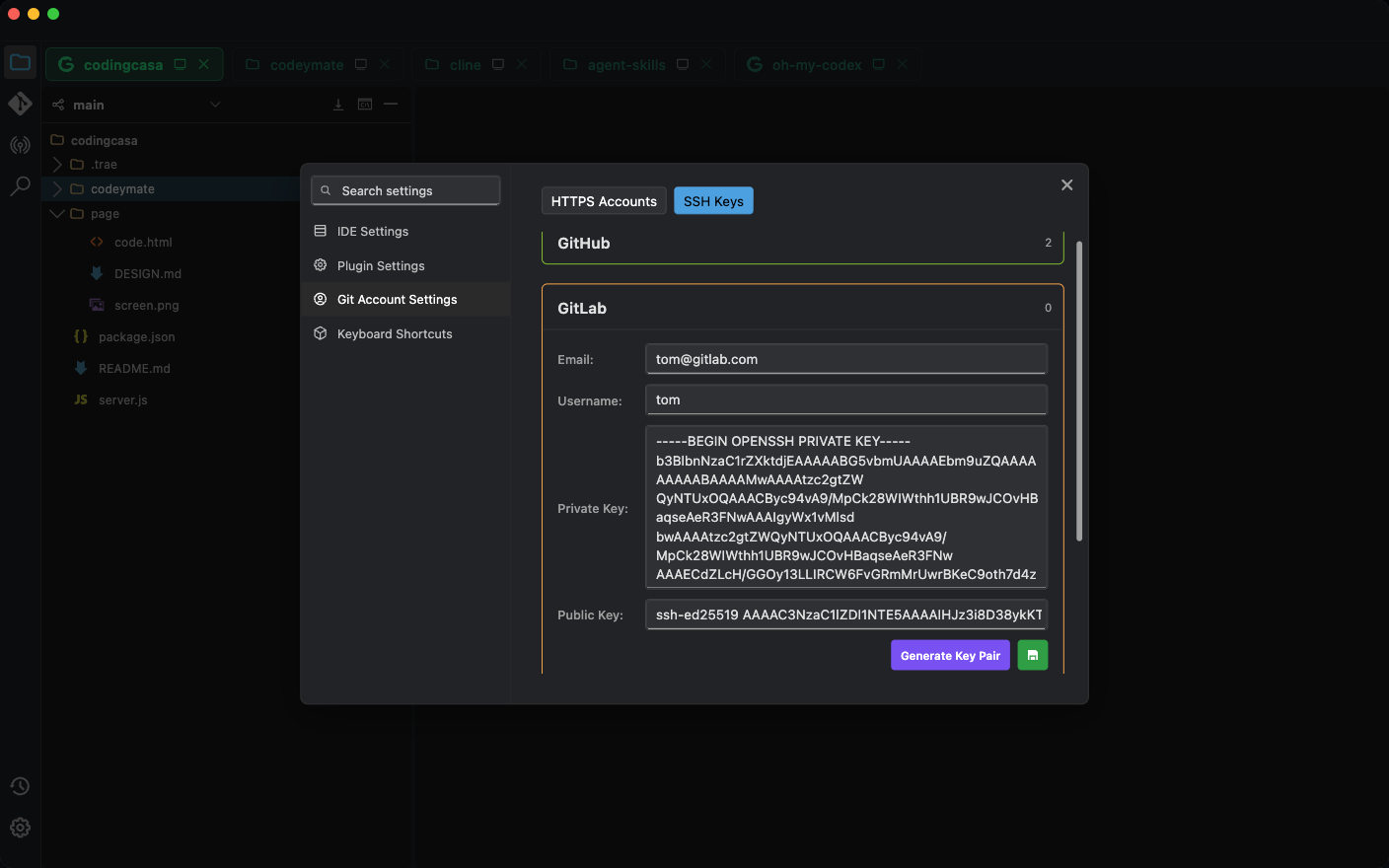
Enter your Email and Username, then click Generate Key Pair to generate a key pair. The private key is encrypted and stored locally (bound to this computer); the public key needs to be copied to your Git provider.
Use a Saved Private Key
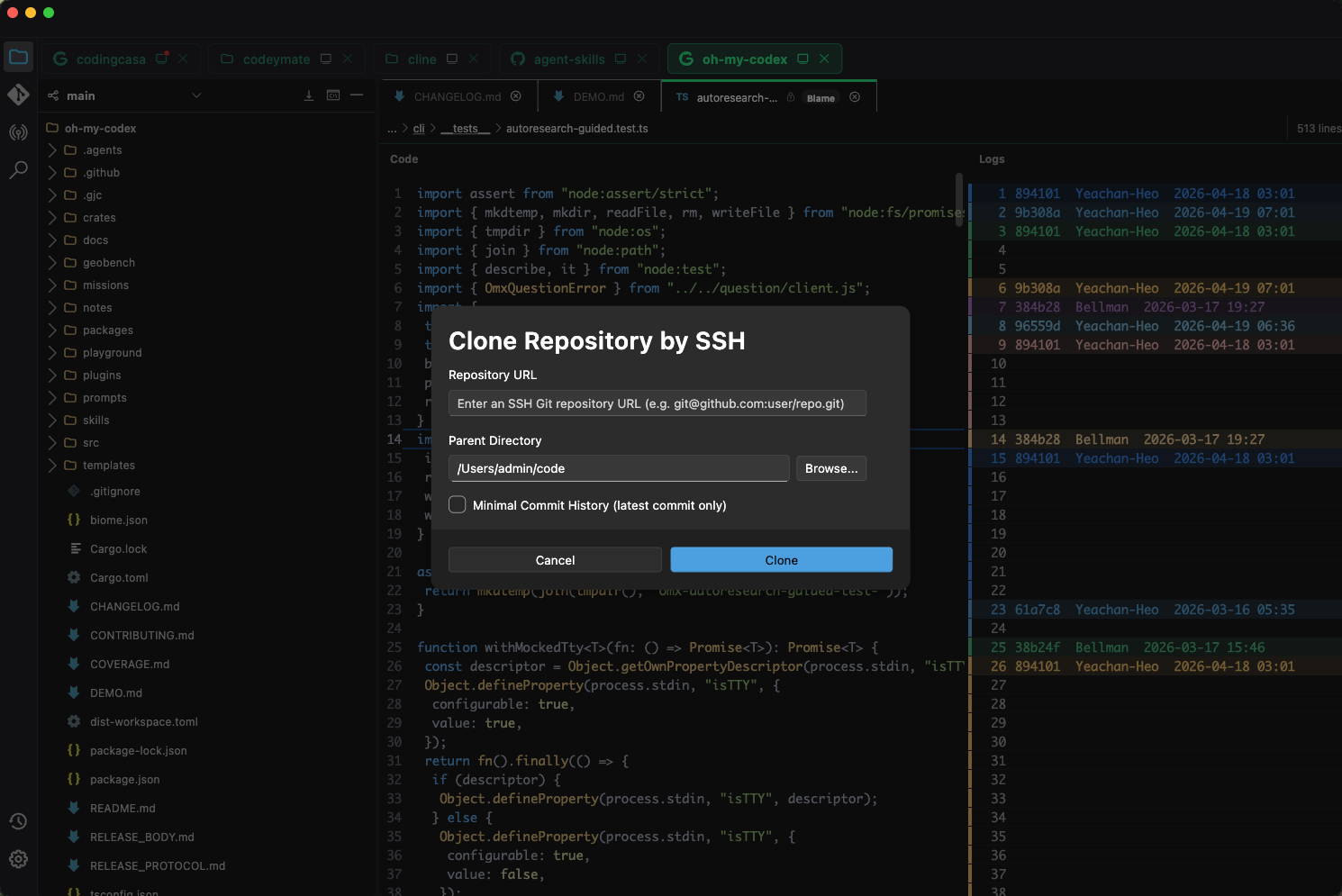
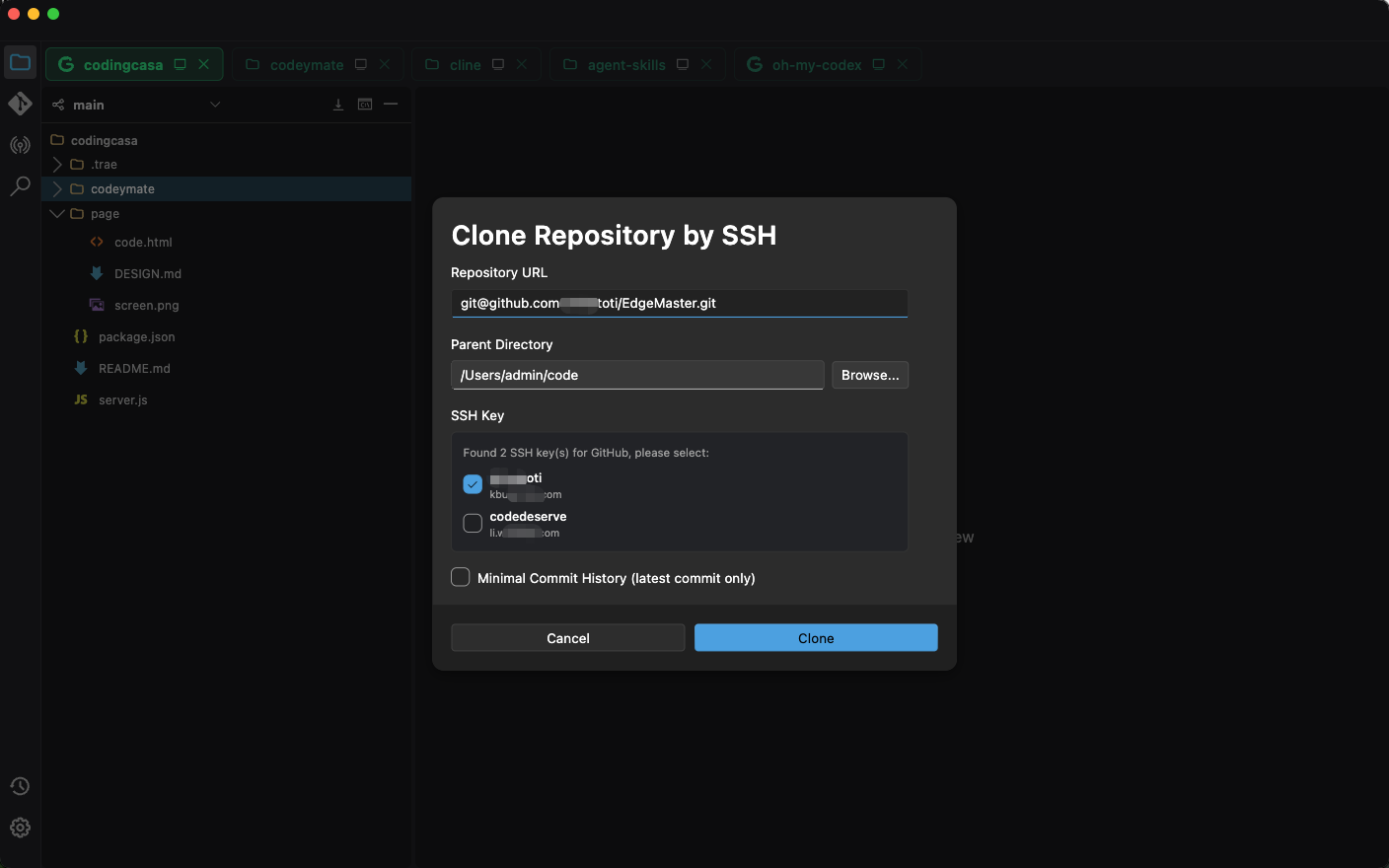
Choose from Multiple Keys
If multiple keys are saved, you can choose which one to use when cloning.
Syntax Highlighting
Syntax highlighting for nearly all programming languages and config files
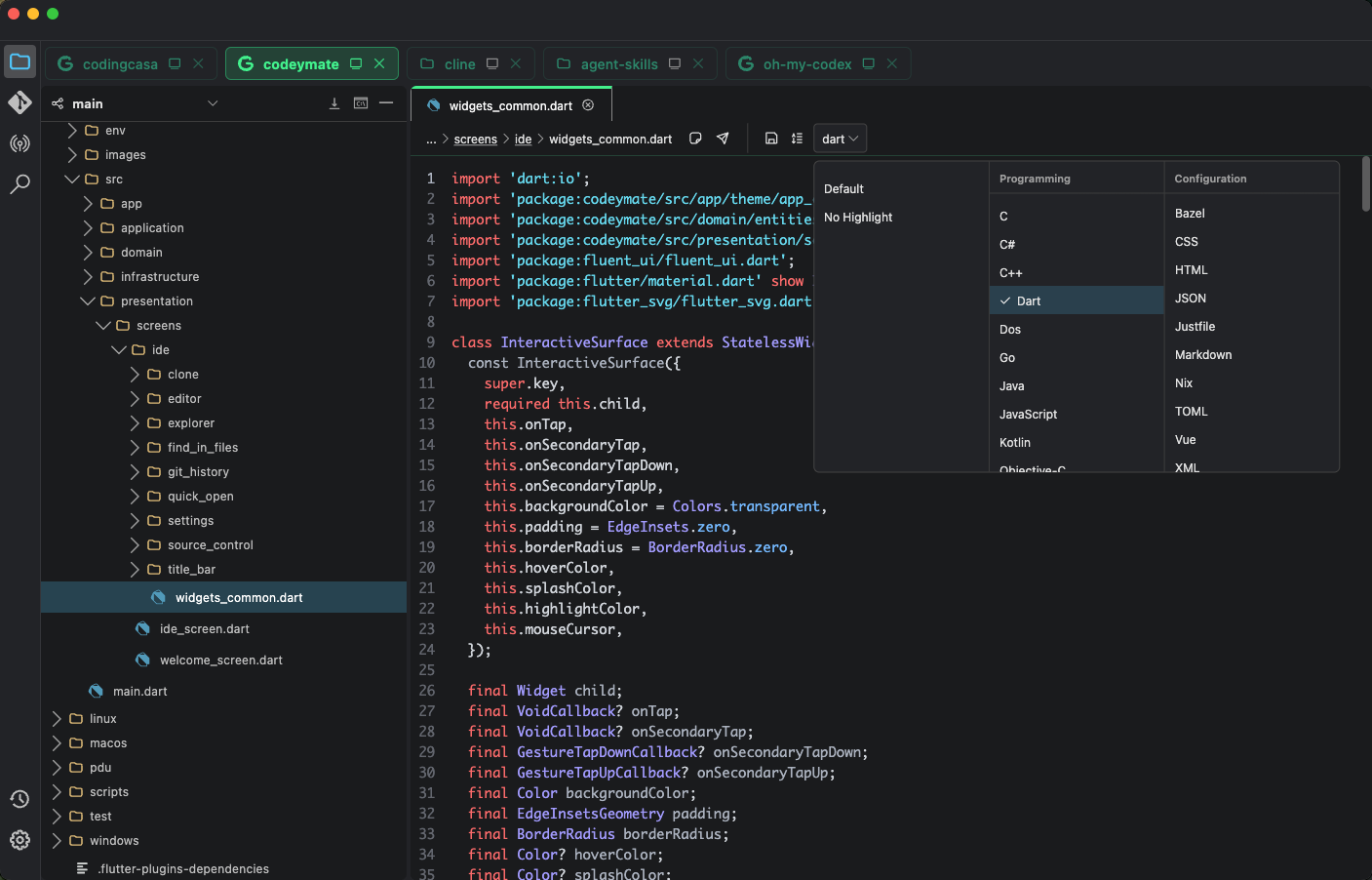
You can also disable highlighting in Settings to speed up file loading.
Find File by Name
Quickly locate any file in your project
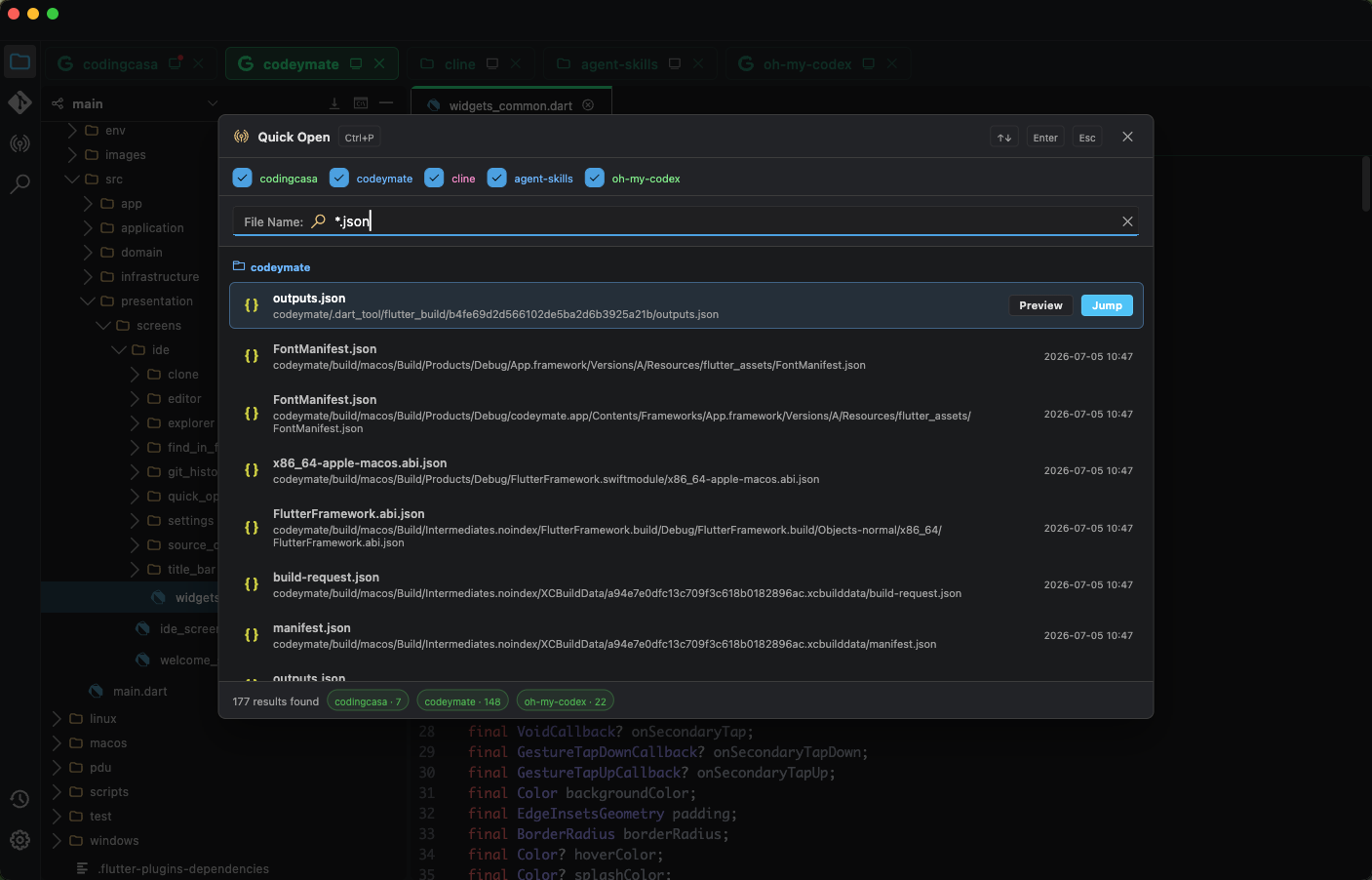
-
Wildcard Search
Supports wildcard matching for flexible file lookup
-
Cross-Project Search
Search across multiple projects at once
-
Lightning Fast
In most cases, results are returned in under 1 second
Find Code / Config
Search code content and configuration items globally
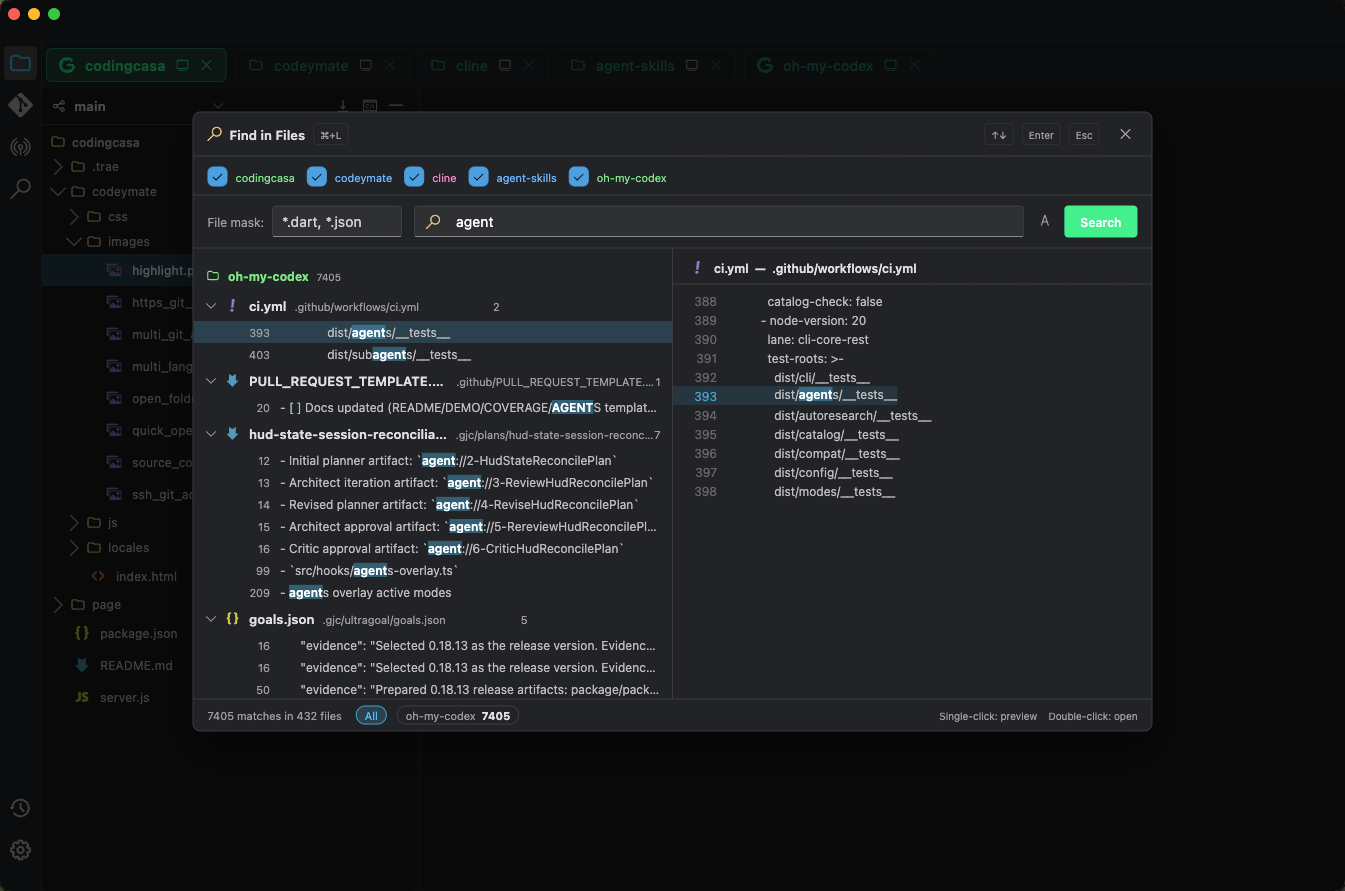
Filter search results by file type to improve efficiency.
Git History
Visualize and manage your Git history
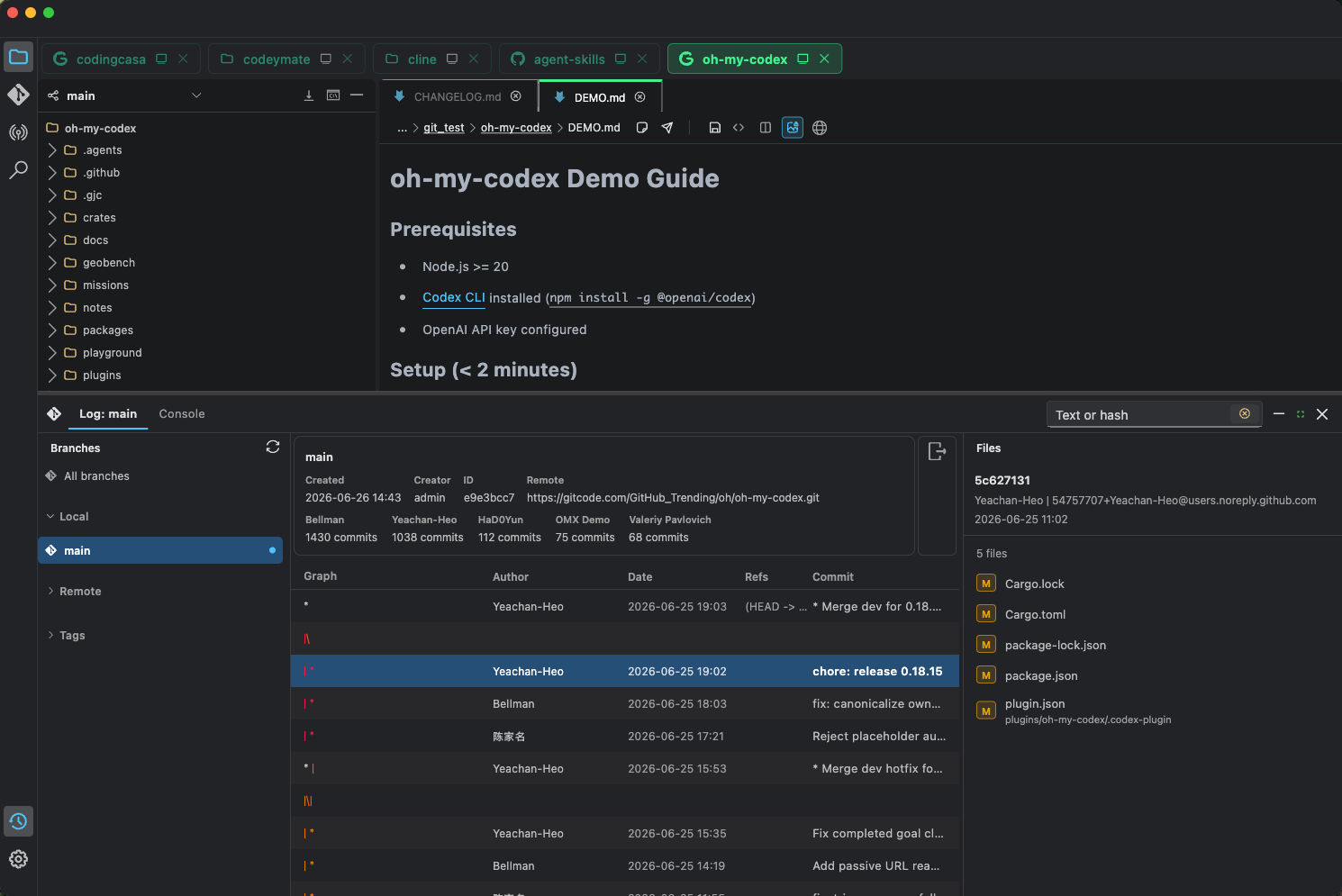
-
Browse Branches
View local and remote branches
-
Browse Tags
Browse all tag labels
-
Checkout
Check out local branches and tags to your workspace
-
Git Blame
See who modified each line of a file
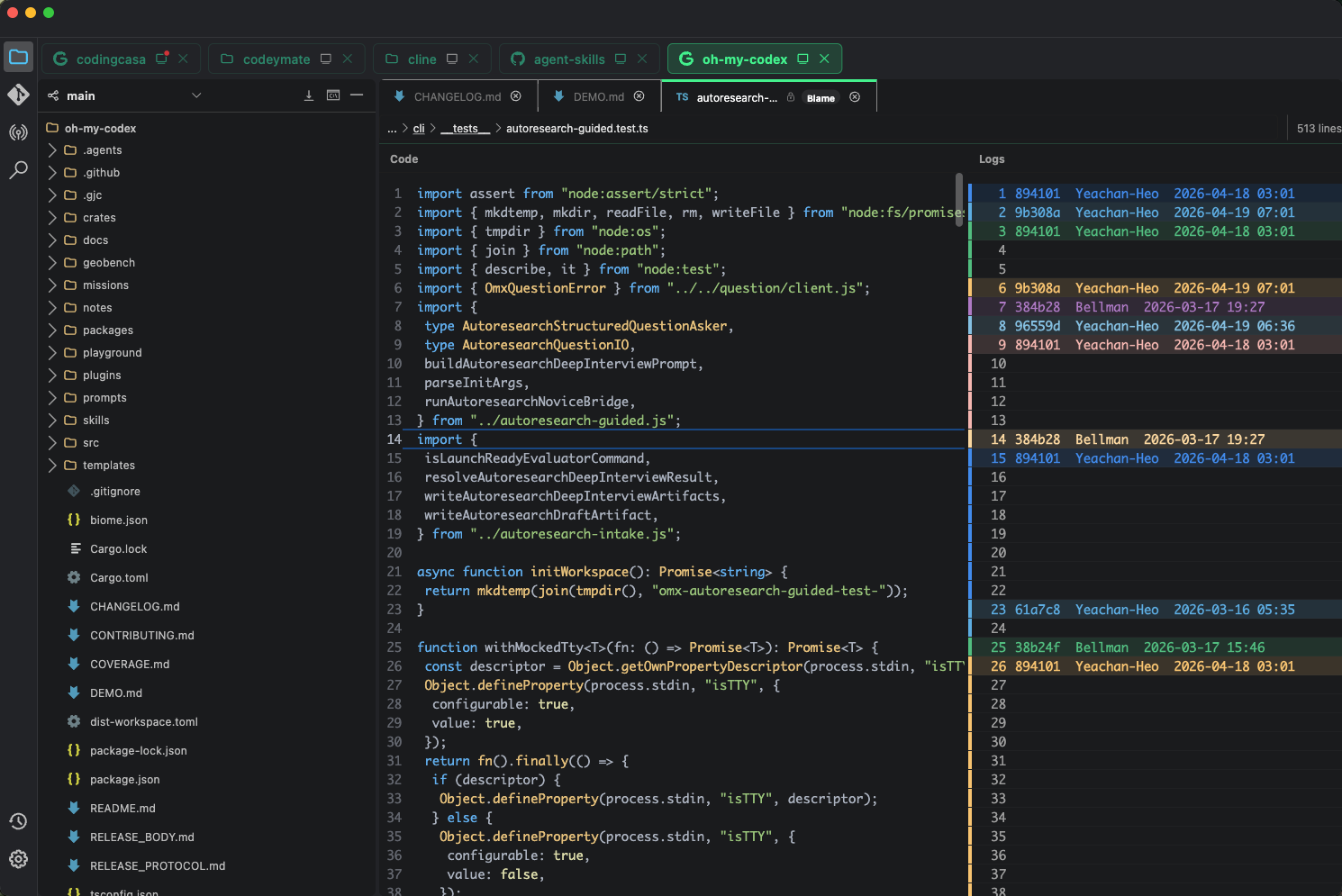
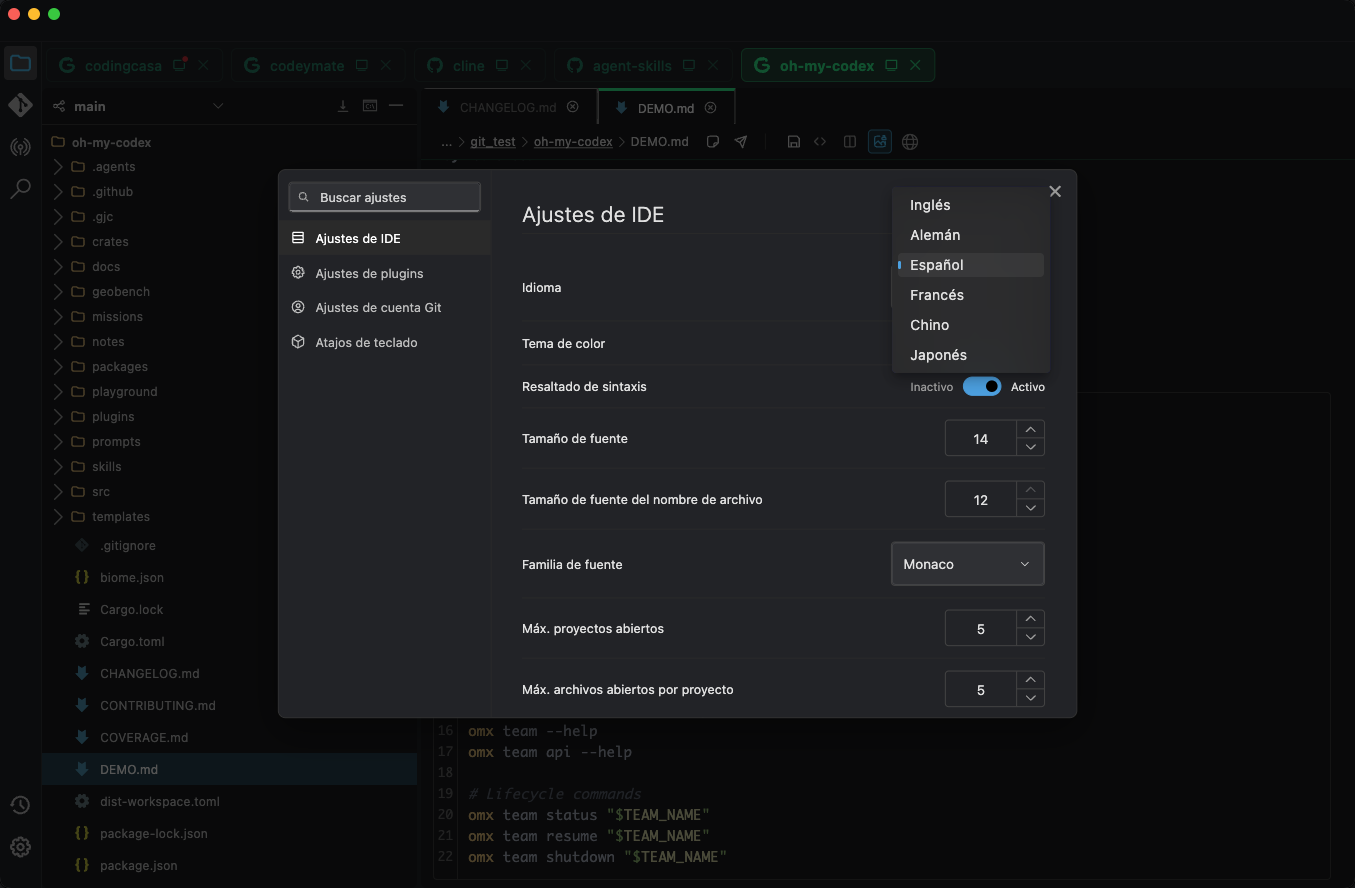
Common Settings
Personalize your development environment
-
Multilingual Interface
Supports English, French, German, Spanish, and Japanese
-
Font Settings
Switch fonts and adjust font size to your liking